
Recent changes to Autodesk Platform Services (APS) require all Vcad Standalone users who rely on the APS viewer to update their existing APS applications. These updates are necessary to avoid model rendering issues in Vcad.
If you are using Vcad Standalone with the APS viewer today, your current APS application must be migrated to the new HUB-based architecture and connected to one of Autodesk’s new licensing tiers.
Autodesk provides detailed guidance on this process in their official article:
How to create a Developer Hub and migrate your applications
APS Application Migration Overview
In the new APS architecture:
- Every APS application must belong to a Developer Hub.
- Each Hub must be associated with an APS Team.
- Each Team must be connected to one of the new APS licensing tiers.
For more information about licensing options, refer to Autodesk’s announcement:
APS Business Model Evolution
Step-by-Step Instructions (Trial Account)
Let’s walk through how a typical Vcad Standalone user, already using the APS viewer, should migrate their existing setup.
NOTE: In this example we will be migrating an APS trial application, but the same procedure should apply for paying accounts.
In the Vcad application settings, you should already see your Autodesk Platform Services connection configured. This connection enables the APS viewer, allowing you to load and visualize a wide range of BIM file formats in your reports.
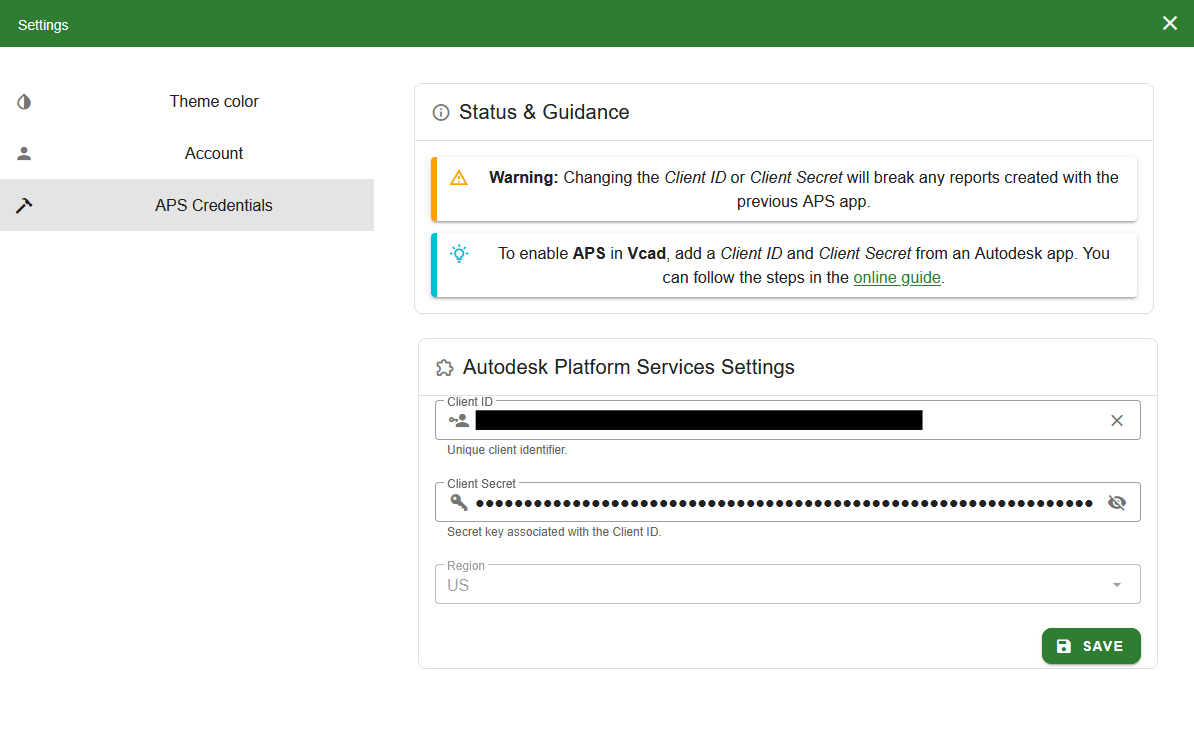
To comply with Autodesk’s new requirements, we need to update this setup by adding the existing APS application to a Developer Hub.
1. APS Tier selection
If you do not yet have one of the new APS tiers of access, you must configure one.
Start by accessing the APS Developer Portal and logging in:
https://aps.autodesk.com/
From here, open the Pricing page and purchase one of the available licensing tiers. Completing this step enables Developer Hub creation.
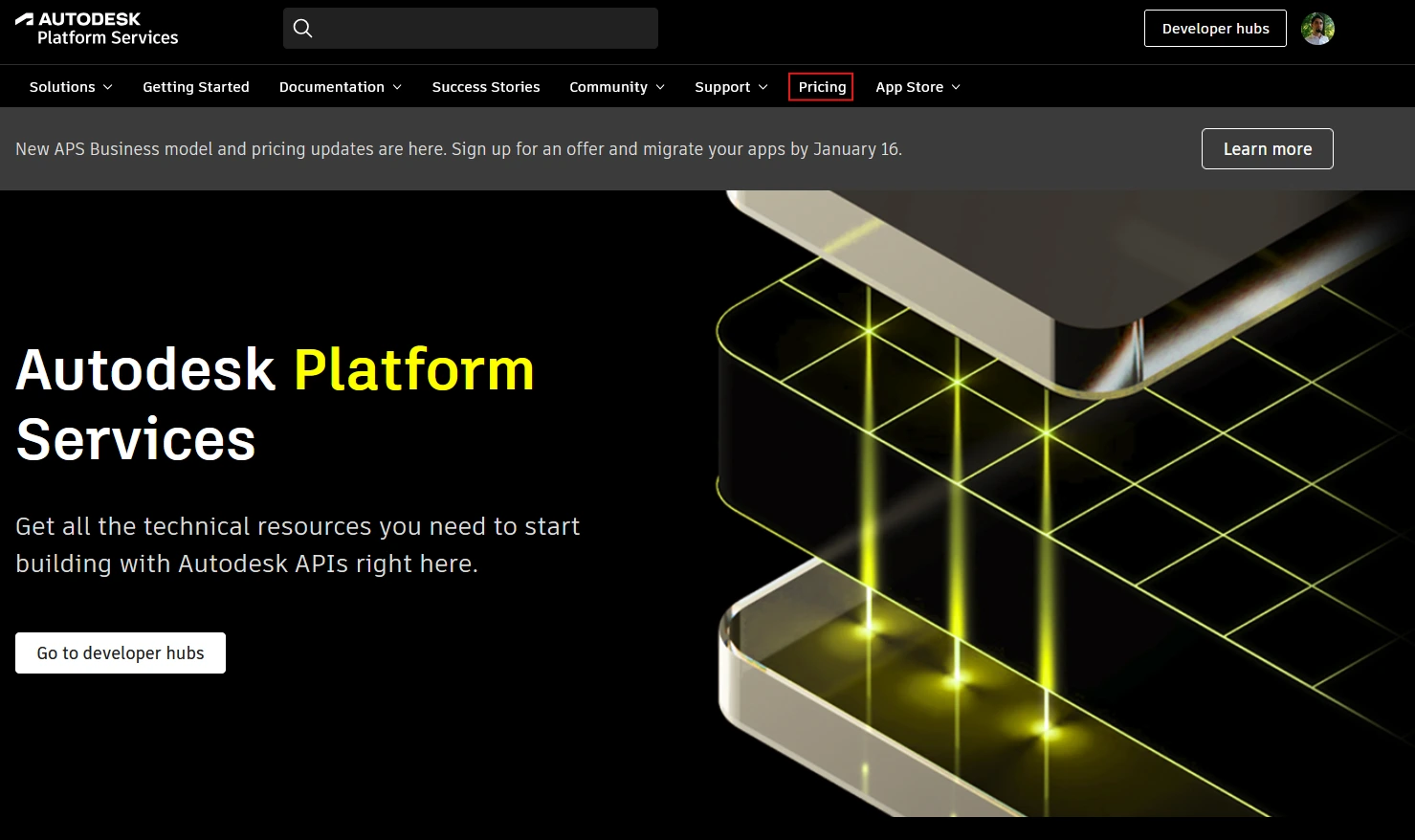
NOTE: Depending on the number of models you process and how frequently you update them, many Vcad users may meet all their needs with the Free tier.
2. HUB Creation
Next, complete the Hub creation process by visiting the Hub management page:
https://manage.autodesk.com/hubs-list
This page shows the teams you belong to and allows you to create a new APS Developer Hub.
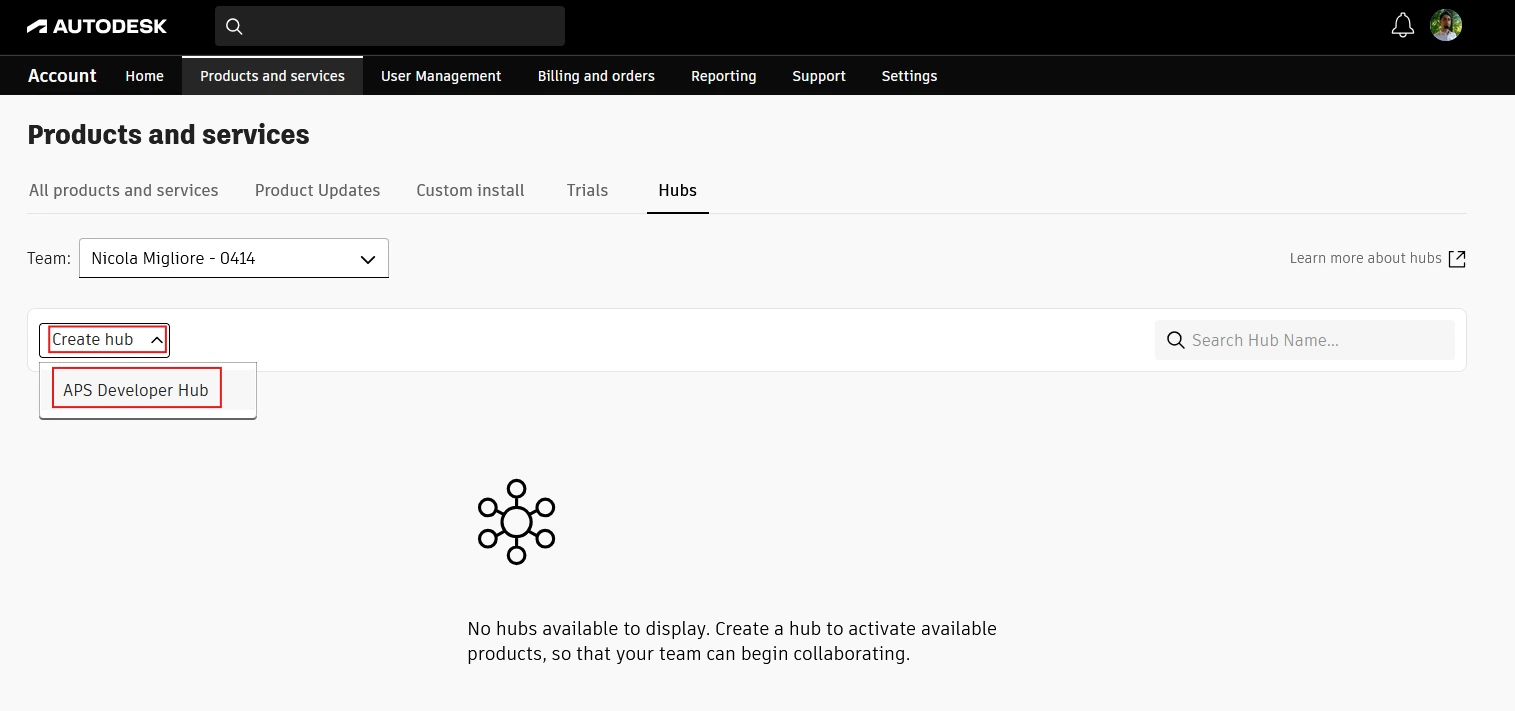
Create a new Hub. This Hub will eventually contain the APS application used by Vcad.

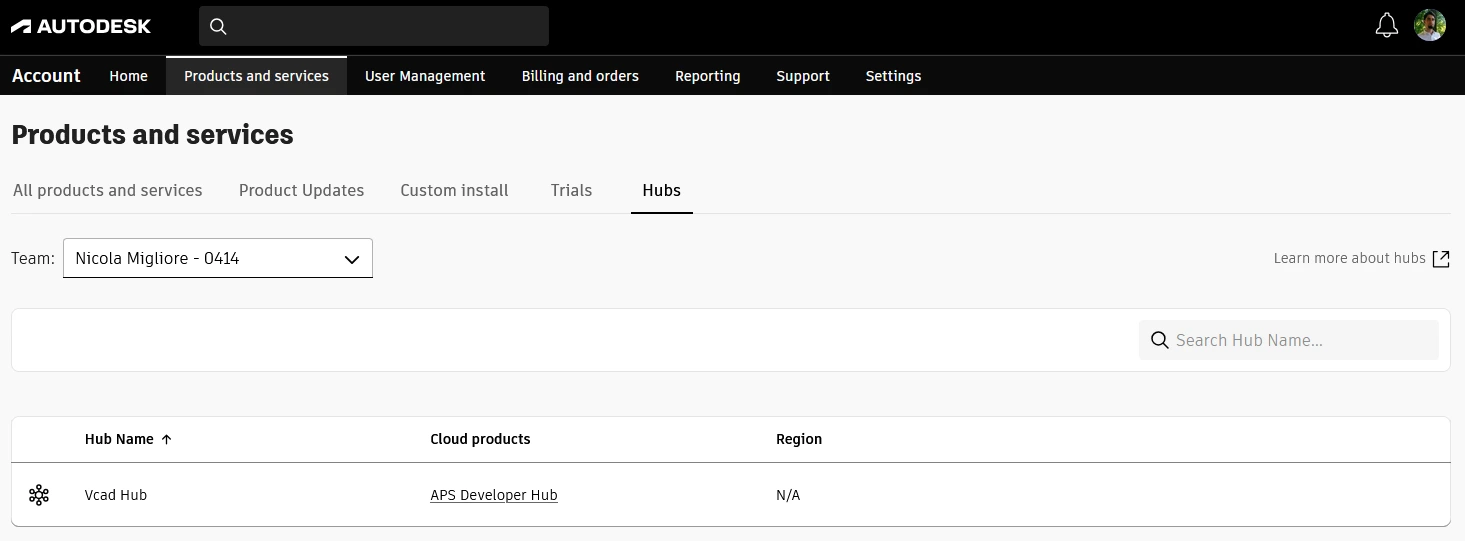
Once created, the Hub will appear in your Hub list:
3. Move Existing Applications to a Hub
With your Developer Hub created and active, the next step is to migrate your existing APS application into it.
Return to the APS management interface:
https://aps.autodesk.com/
Open the user menu and select My applications.
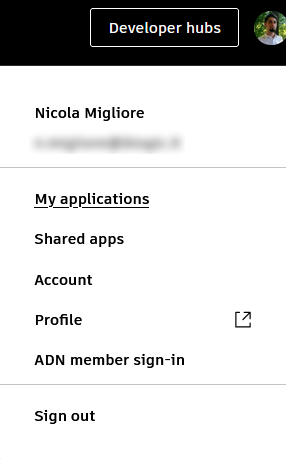
Note: You must log in using the same account originally used to create the APS application.
You will now see your list of existing APS applications. You should eventually move all of them into a Developer Hub, but for Vcad, you only need to migrate the application currently used by your Vcad installation.
In this example, the application is named “Vcad App”.
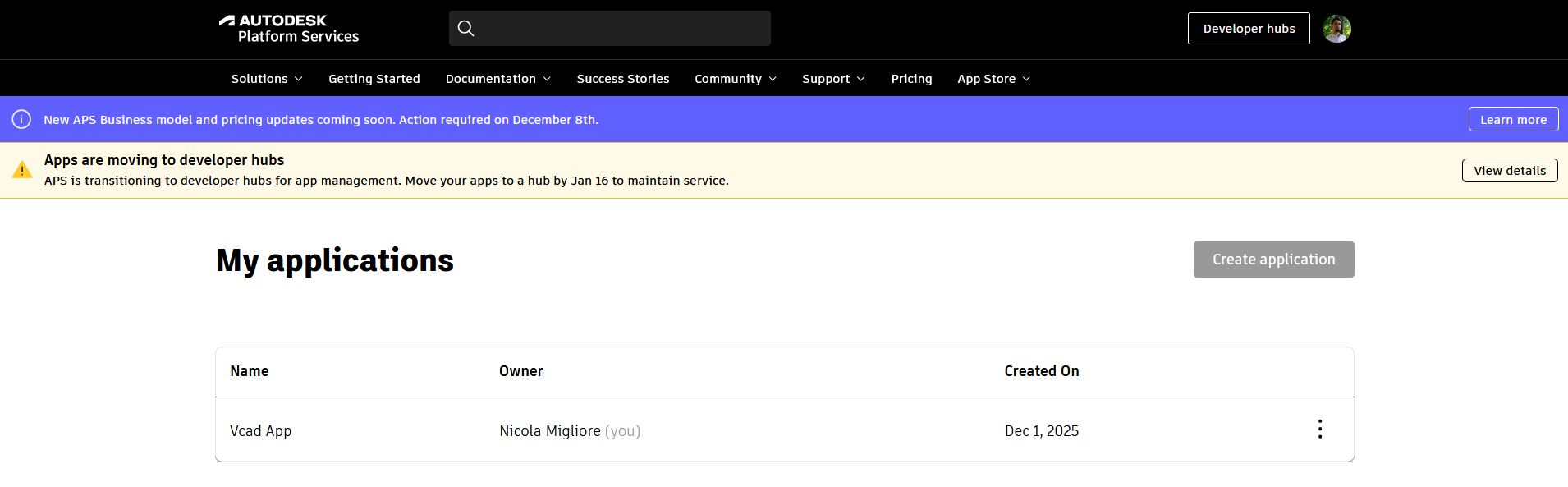
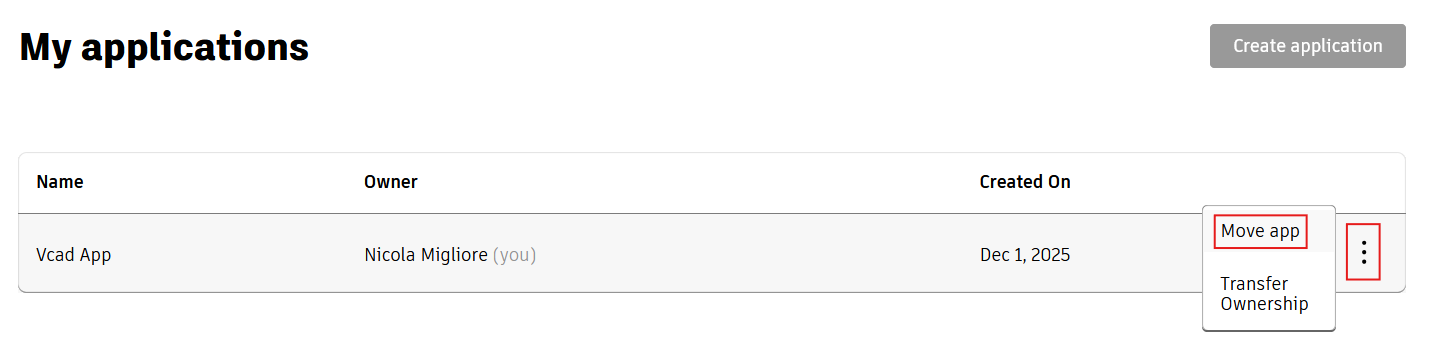
Open the three-dot menu and choose Move app.
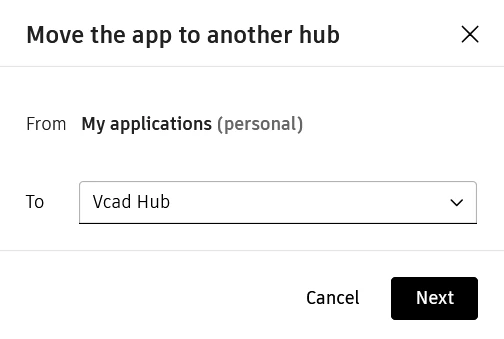
Then select the APS Developer Hub you created earlier.
Once this is done, your Vcad application will be aligned with Autodesk’s new HUB-based APS architecture and your new APS Developer Hub will display the application previously used by Vcad.

Conclusion
By completing the steps outlined above, your APS application will be fully aligned with Autodesk’s new HUB-based architecture. This ensures continuous, uninterrupted service for all existing Vcad reports, and your current models will continue to render as before.
At the same time, you will be able to add and publish new models for reporting with Vcad without any disruption to your workflow.
Following this migration now guarantees a smooth transition and preserves full functionality of your Vcad Standalone environment moving forward.