
The guide below explains how to use Autodesk Platform Services in Vcad.
This allows you to harness the power of Autodesk services and manage large, complex files and formats such as Revit, Navisworks, DWG and many others.
Step 1: Create an APS Account
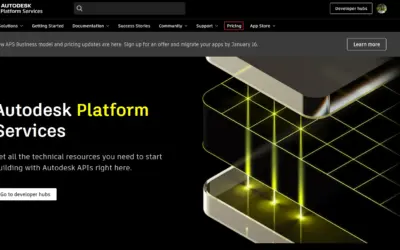
- Go to the Platform Services portal.

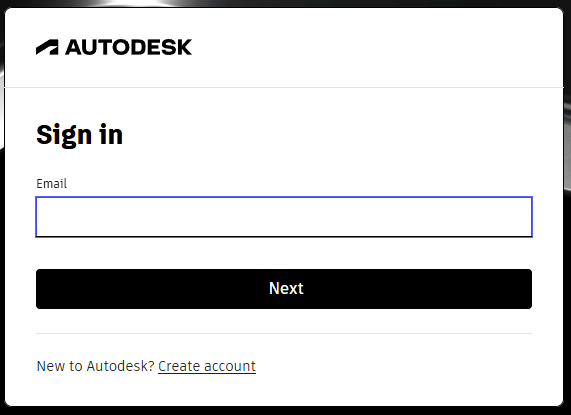
- Click the Sign in button at the top right of the page. The Sign in page displays.
If You Already Have an Autodesk Account…
- Specify your email address and click Next.
- In the next screen, specify your password and click Sign in.
If You Don’t Have an Autodesk Account…
- Click the Create account link. The Create account page displays.
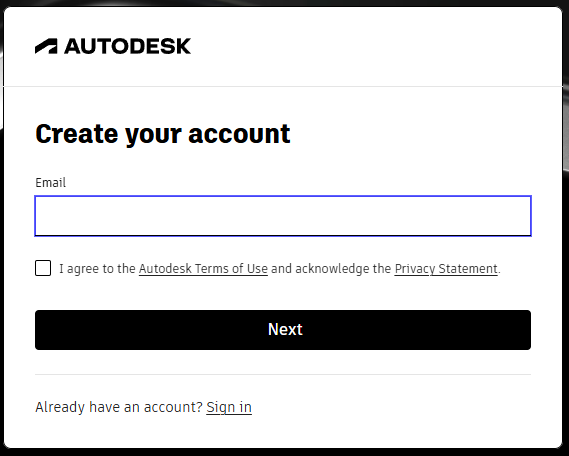
- Fill out the form and click the Next button. The verification required screen displays.
- Check your email, and click the verification link on the email sent to you by Autodesk. The Account verified page is displayed.
- Click Done. You are redirected to a Welcome Page.
- Specify your details and click Submit. The APS Account Details page displays.
Step 2: APS Tier selection
You will need to configure an APS tier.
- Open the Pricing page and purchase one of the available licensing tiers. Completing this step enables Developer Hub creation.
NOTE: Autodesk Platform Services provides a Free tier that can be used with Vcad, as long as usage remains within specific monthly limits defined by Autodesk.
The APS Free tier includes a monthly allowance equivalent to 20 complex file conversions. Complex conversions include Revit, Navisworks and IFC models. All other supported formats are considered simple conversions. In addition to file conversions, the APS Free tier also includes up to 300,000 API calls per month.
As long as your usage stays within these limits, APS can be used integrated within Vcad at no additional cost.
Please note that when enrolling in APS and selecting the Free tier, Autodesk currently requires a valid credit card to be entered during the plan selection process, even if no charges are applied while staying within the Free tier limits.
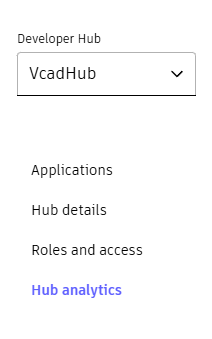
You can monitor the API usage in the Application page.
Step 3: HUB Creation
Next, complete the Hub creation process by visiting the Hub management page:
https://manage.autodesk.com/hubs-list
This page shows the teams you belong to and allows you to create a new APS Developer Hub.
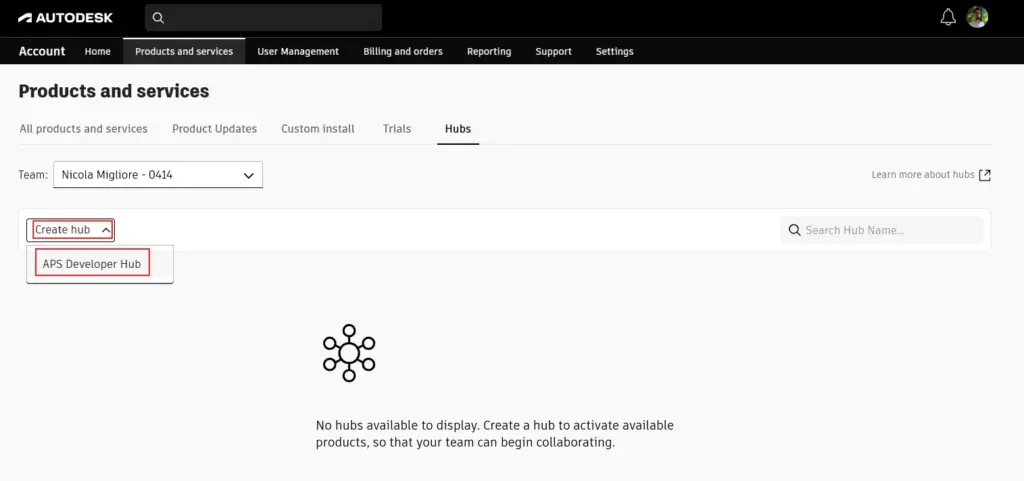
- Create a new Hub. This Hub will eventually contain the APS application used by Vcad.

Once created, the Hub will appear in your Hub list:
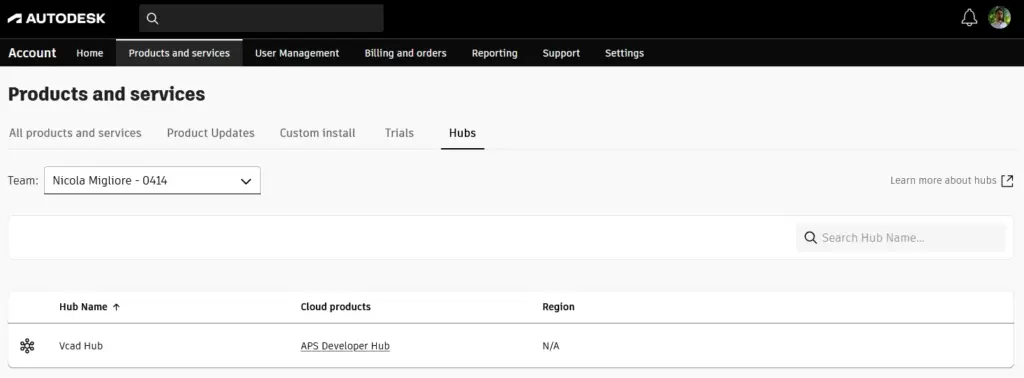
Step 4: Create an APS Application
Now you need to create an APS application.
- Start by accessing the new hub either by clicking on the hub name or going to https://aps.autodesk.com/hubs.
- Click the Create application button on the top-right in the Applications page. Then, click Create application.
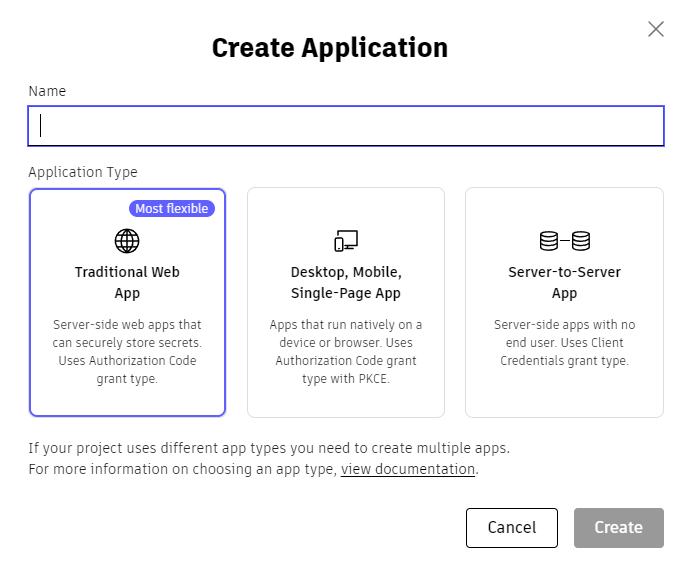
- Enter the app name and description.
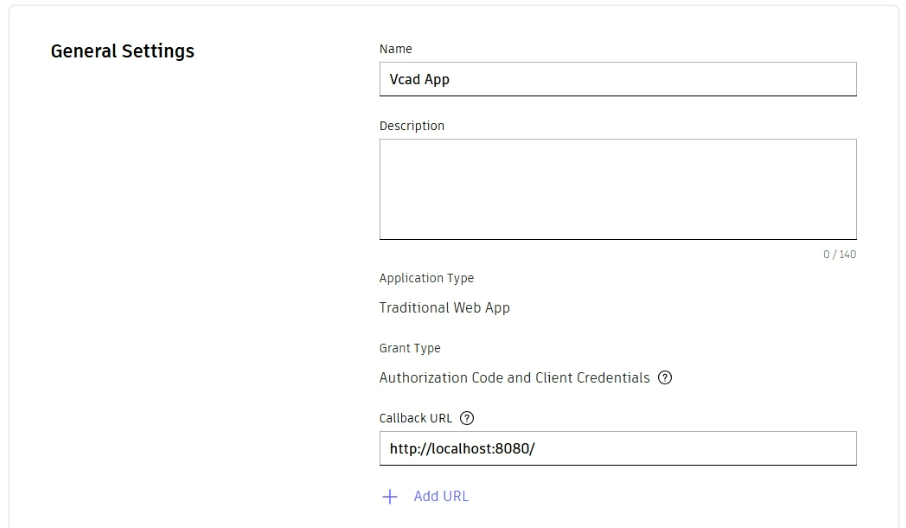
- Click Create app.
Step 5: Note down your Client ID and Secret.
Once you register an app, you will see a Client ID and Client Secret in your newly created app page.
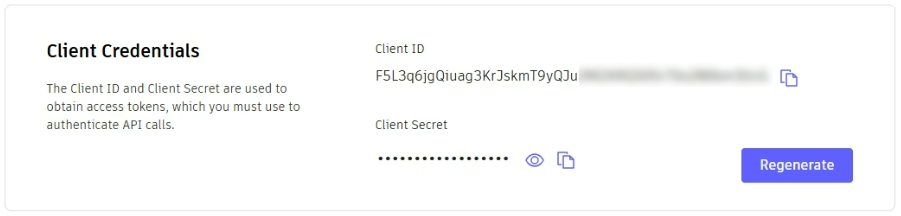
NOTE: this procedure reflects the current steps required to enable Autodesk Platform Services in Vcad.
Please note that Autodesk may update its platform and settings over time, so some details could change.
Step 6: Copy Your Client ID and Secret in Vcad
Click on the settings icon on the upper right corner in the Vcad file manager page.

In the window that opens select APS Credentials.
Copy the Client ID and Secret in the fields provided and select the Region field depending on where you want your files to be hosted on Autodesk servers.
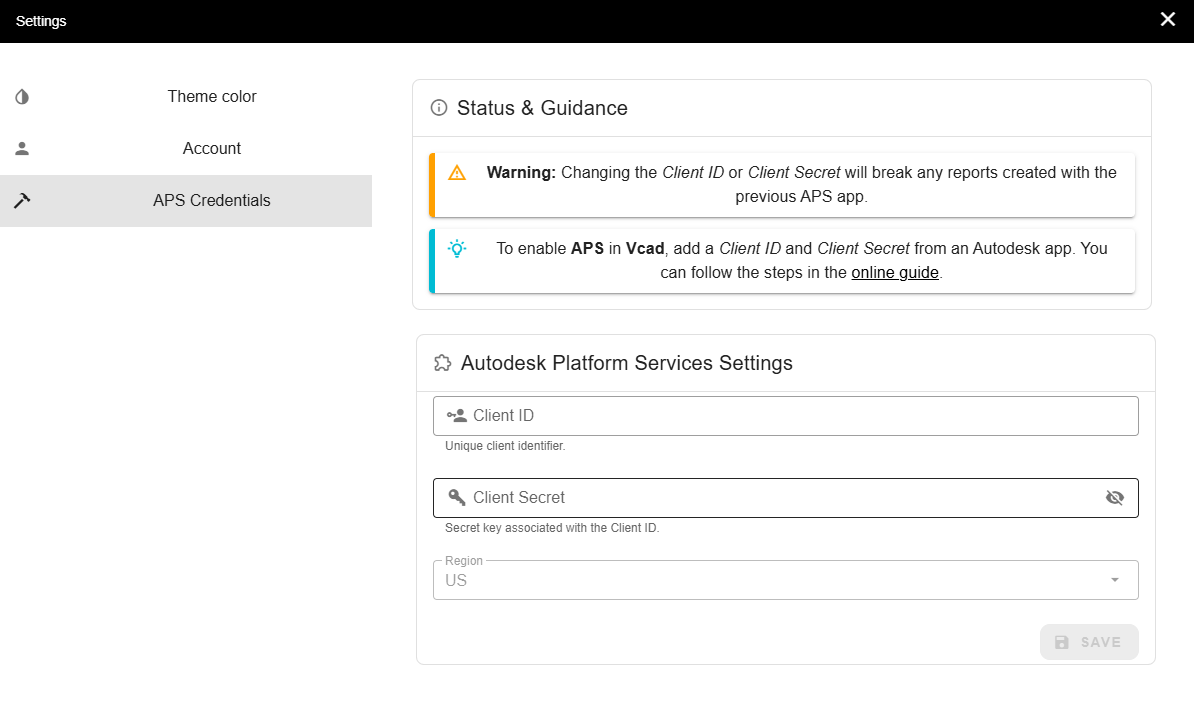
Click the Save button. Your account is now enabled to use the APS viewer.