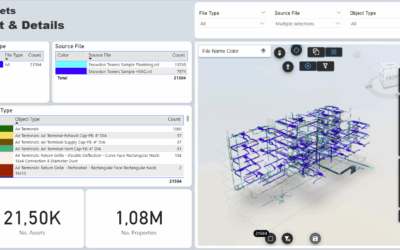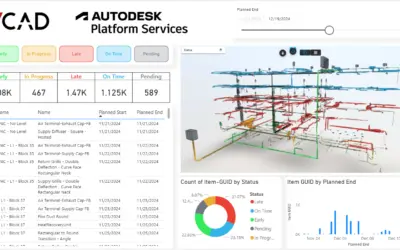
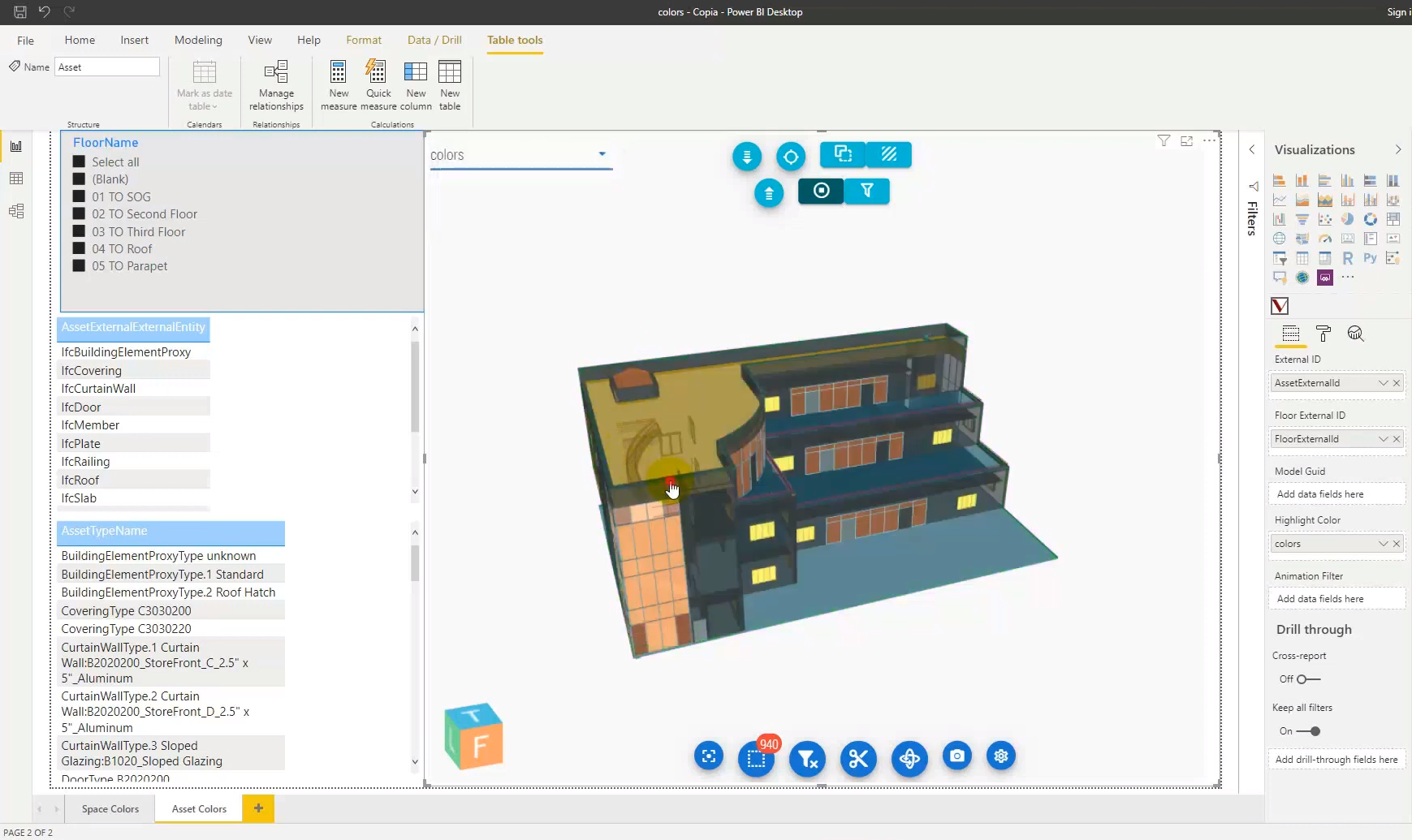

We used the ASSET AND SPACES COLOR template where you may find a color table and a function to populate the color column quickly. The procedure is the same if you want to assign a personalized color to the spaces or based on different characteristics.
Add Color Table – step by step
1) Open the Power Query Editor, select the table and the column you want to take the attribute from, right-click on the header and then ‘Add as New Query’.
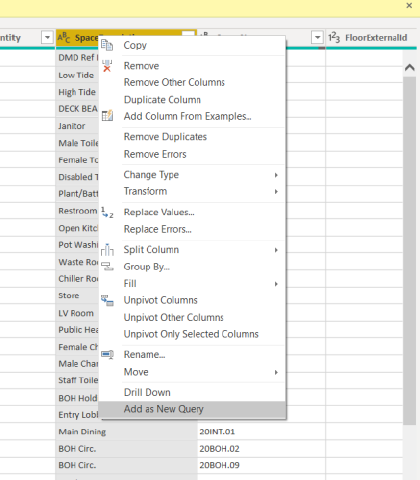
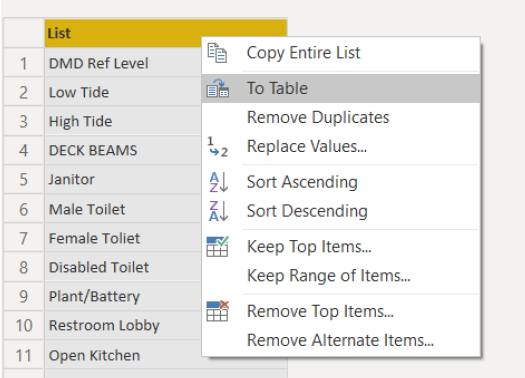
2) Right-click on the header, select ‘To Table’ and then ‘Remove Duplicates’.
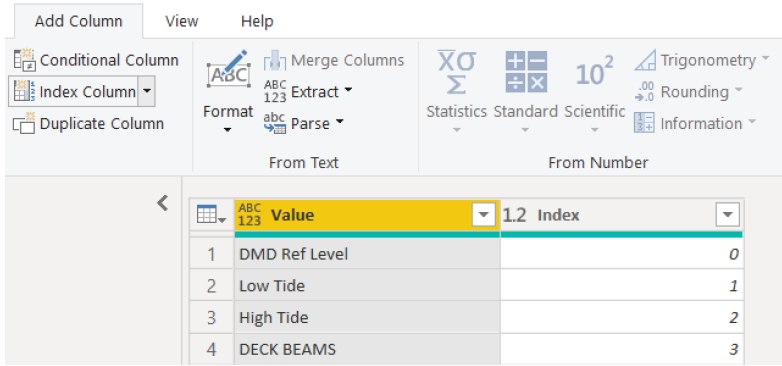
3) Select the ‘Add Column’ and ‘Index Column’ tab to add an Index field.
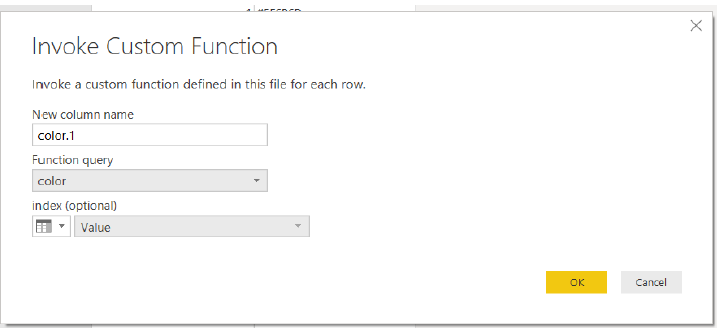
4) Use ‘Invoke Custom Function’ to call function ‘color’ and select index = Value.
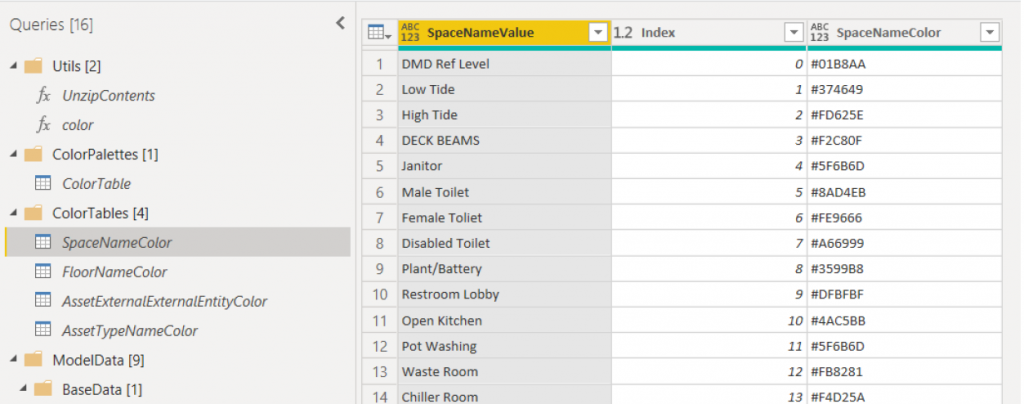
5) The end result is a lookup table with colors that can be merged with the main table and a relationship can be created with the table that contains the attributes.
6) Use Table Visual and select SpaceName and SpaceNameColor fields.
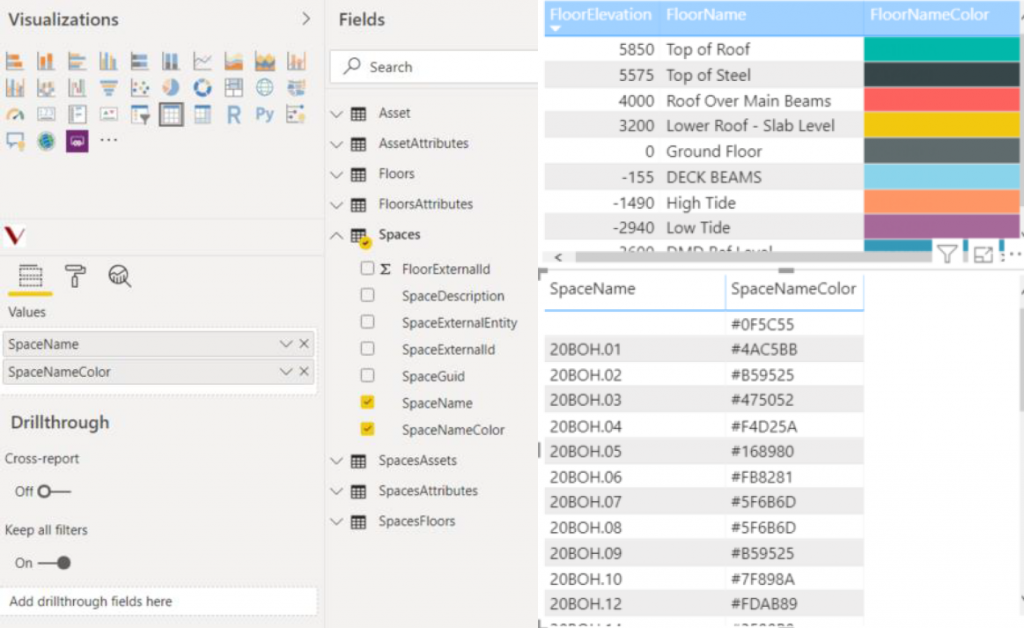
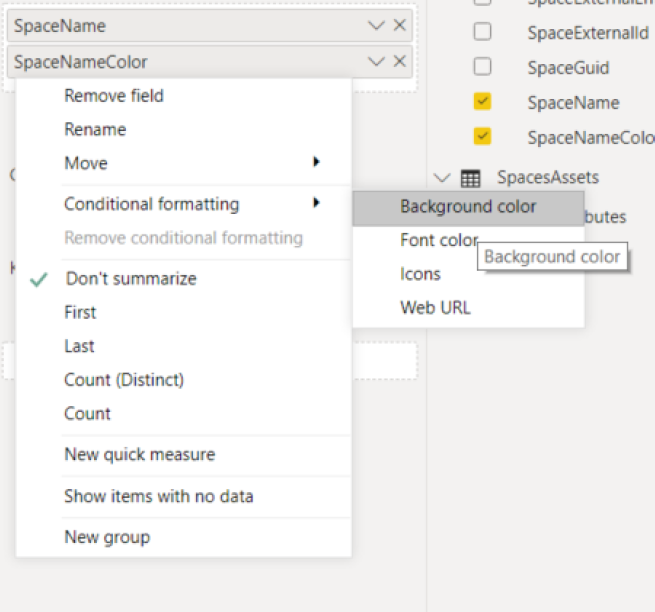
7) Right click SpaceNameColor, ‘Conditional formatting’ and ‘Background color’ and ‘Font color’.
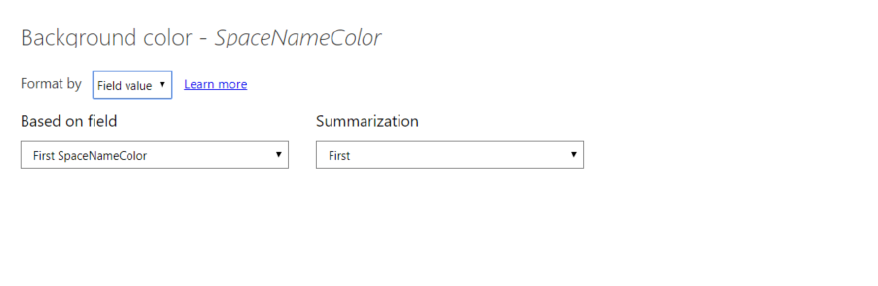
8) Select ‘Format By’ = ‘Field Value’.
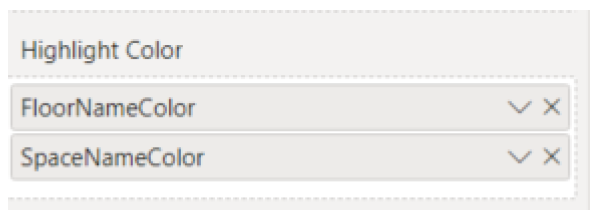
9) Select Vcad custom visual and add SpaceNameColor to ‘Highlight Color’ Field to enable theme selection.
Please watch the video below, it contains a detailed explanation of all the operations to be done.