
In many BIM projects, Navisworks Selection Sets are already part of everyday coordination workflows. They group elements by discipline, system, work package, or construction phase and help teams navigate complex models efficiently. But Selection Sets can do more than support coordination.
By combining Selection Sets, Navisworks Quick Properties, Vcad, and Power BI, you can create a clean and robust bridge between model geometry and external business data — without modifying the authoring model.
This article explains the complete workflow and demonstrates it with a practical progress-tracking example.
Turning Model Structure into Data Structure
BIM models contain geometry and technical properties. Business-critical information — such as progress, cost, procurement status, or QA data — typically lives in external systems.
Instead of writing that data back into the model, we can:
- Use Selection Sets to group elements according to an external structure (for example, WBS).
- Export a stable element identifier (such as Item-GUID) from each Selection Set.
- Use that identifier to connect external data to the Vcad dataset in Power BI.
Selection Sets define logical grouping.
Quick Properties define the technical bridge.
Power BI performs the data integration.
Step-by-Step Workflow
Step 1 – Define Selection Sets Based on External Structure
Start in Navisworks by creating Selection Sets that reflect the structure of the external data you want to connect.
A common example is construction progress tracking based on WBS (Work Breakdown Structure).
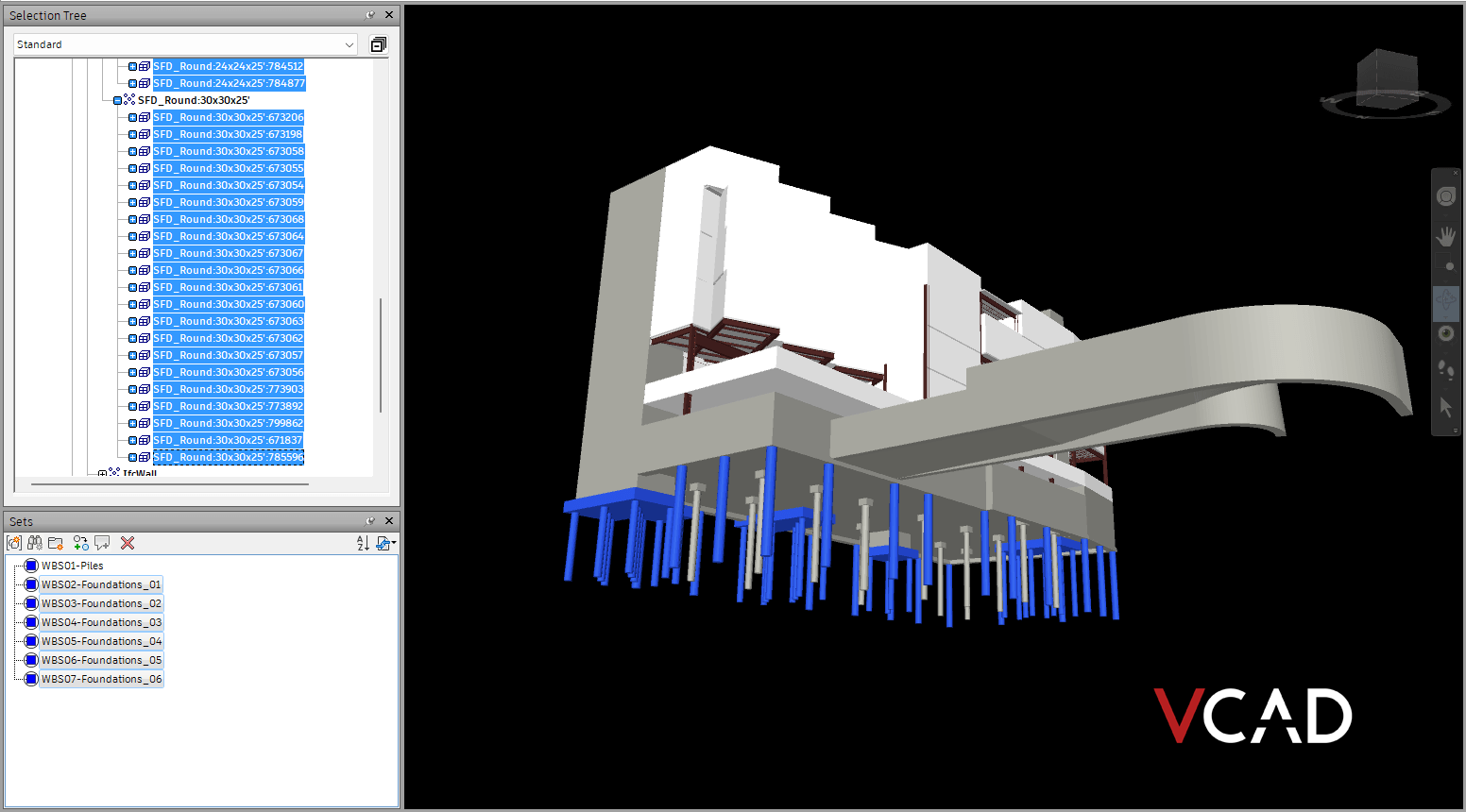
For example, as shown in the screenshot below, you might define WBS-based sets.
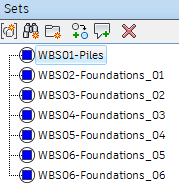
The exact number of sets is not important, what matters is that each Selection Set represents one reporting unit in your external structure.
Each Selection Set contains the model elements that belong to that WBS item.
The key principle is that the Selection Set structure should mirror the structure of the external dataset.
If progress is reported per WBS, then create one Selection Set per WBS.
Step 2 – Configure Navisworks Quick Properties
Next, configure Navisworks Quick Properties to expose a stable and unique identifier that can represent each model element across systems.
This identifier is the technical key that allows us to connect the elements selected in Navisworks with the elements stored in the Vcad dataset and the external data inside Power BI.
In many workflows, the most common and recommended identifier is Item-GUID. The GUID is globally unique and stable, which makes it a very reliable bridge.
However, in this example we use Element ID-Name, as it is a more reliable identifier for our specific model.
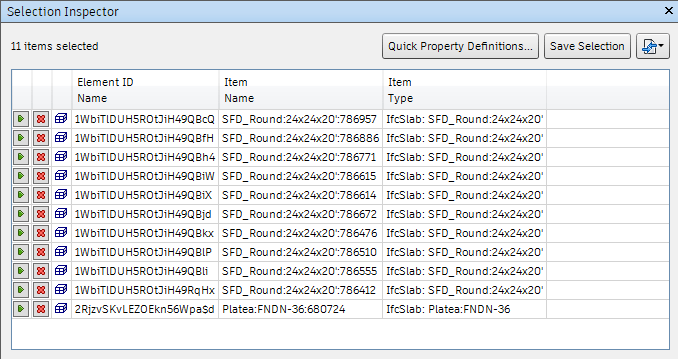
The important principle is not which property you choose — but that it must be:
- Unique per element
- Stable over time
- Available both in Navisworks and in the Vcad dataset
By adding this identifier to Quick Properties, we ensure that when exporting data from a Selection Set, each row includes the correct element key.
Without a stable identifier, there is no reliable way to connect exported Selection Set data back to the Vcad geometry inside Power BI.
Step 3 – Export Quick Properties Per Selection Set
Now process each Selection Set individually:
- Select a single Selection Set (for example,
WBS_01). - Open the Property Explorer.
- Export the configured Quick Properties to CSV.
- Name the file according to the Selection Set (e.g.,
WBS_01.csv).
Repeat this process for all WBS Selection Sets.
Each CSV file now contains:
- The chosen unique identifier (in this example, Element ID-Name)
- The Selection Set context (implicitly via file name)
In other words, you now have a structured mapping between: WBS ↔ Element ID
Step 4 – Append the Exports in Power BI
Now you can being the Set Data into Power BI:
- Import all exported CSV files.
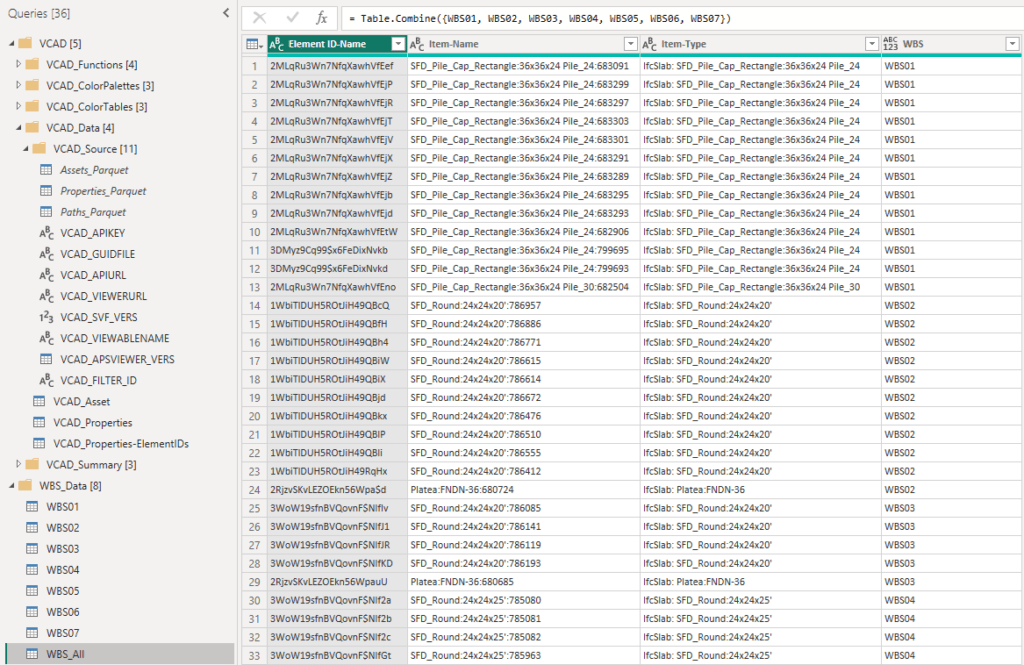
- Add a column representing the WBS (derived from the file name).
- Append them into a single consolidated dataset.
The result is a unified table like the following image.
Step 5 – Connect the WBS Data to the Vcad Dataset
Now you can use the VCAD_Properties query to highlight the identifier you exposed through Quick Properties (in this example, Element ID-Name) for each model object.
To create a clean and controlled bridge, follow these steps:
- Create a reference or copy of the
VCAD_Propertiesquery. - In the copied query, filter the rows so that only the chosen unique identifier property (Element ID-Name) remains.
- Keep only the necessary columns:
ObjectIDandValue, then renameValuetoElementIDto clearly represent the unique identifier used for the relationship.
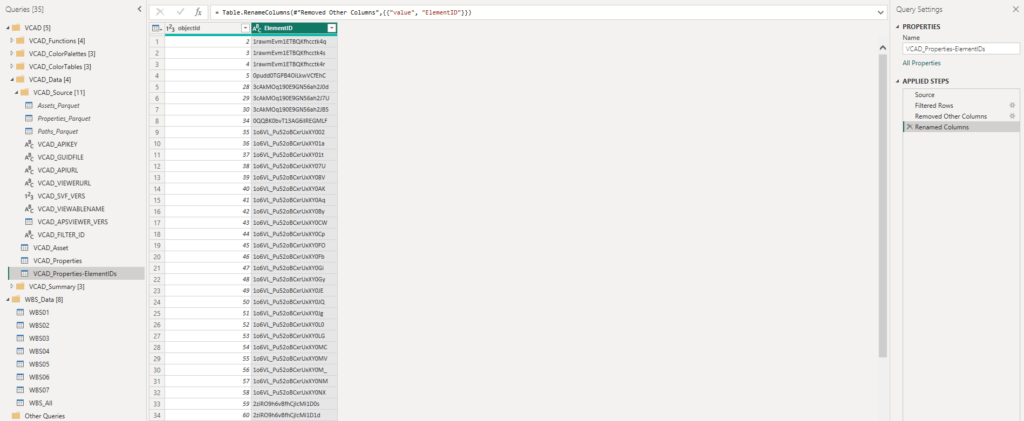
This new filtered query becomes the bridge table between:
- The appended WBS export table
- The full Vcad dataset
Now create relationships:
- Connect:
Element ID-Name(from the appended WBS table)ElementID(from the filtered VCAD_Properties bridge query)
- Ensure that this bridge table remains related to the core Vcad tables as defined by the default Vcad data model.
- Connect your external progress dataset to the WBS column in the appended WBS table.
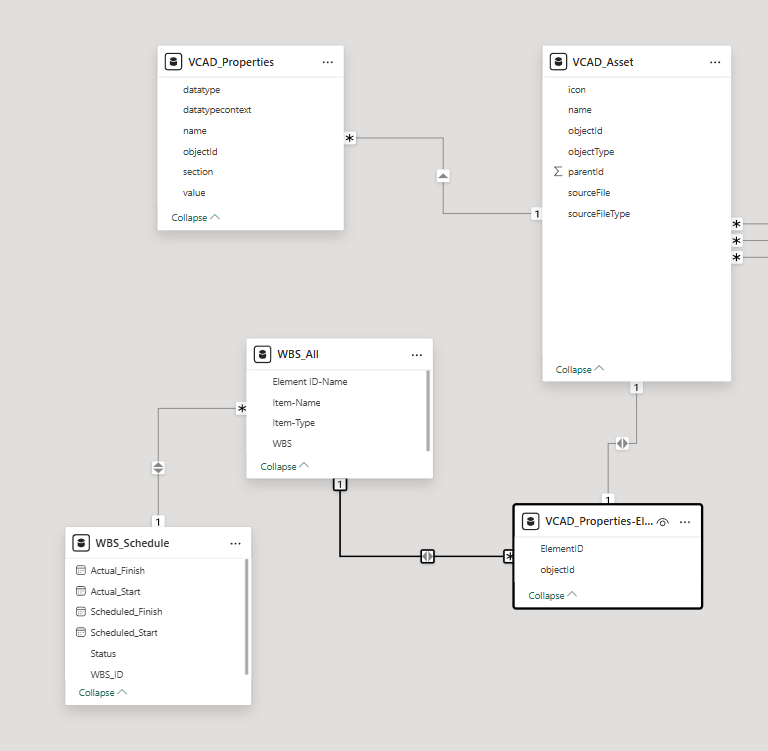
This approach preserves the integrity of the BIM authoring model by avoiding any direct modifications or the embedding of enterprise data into geometry. Instead, all integration is handled within Power BI through a controlled relational model, ensuring a clean separation of responsibilities, easier maintenance, and a scalable structure that can evolve without impacting the source model.
Why This Approach Is Powerful
- It keeps the BIM model clean.
- It avoids writing business data into authoring tools.
- It leverages existing coordination structure.
- It creates a scalable integration pattern.
If you are already using Selection Sets in Navisworks, you are only a few steps away from turning coordination structure into analytics structure.
Ready to Use in Your Report
At this stage, your data model is fully connected and ready to be used in your Power BI report. The WBS structure is linked to individual elements through the ElementID bridge, and the Vcad dataset provides the geometric context.
This means you can now:
- Select a WBS in a chart and instantly highlight the corresponding elements in the 3D model.
- Filter progress, cost, or any other external dataset based on model selections.
- Drive visual states in the 3D view using WBS logic or any other Selection Set structure you define.
Because the integration is based on a stable identifier and a controlled bridge query, you can repeat the same logic for other datasets and other Selection Set groupings, not just WBS.
Any structured Set logic can now drive model-based analytics inside Power BI.